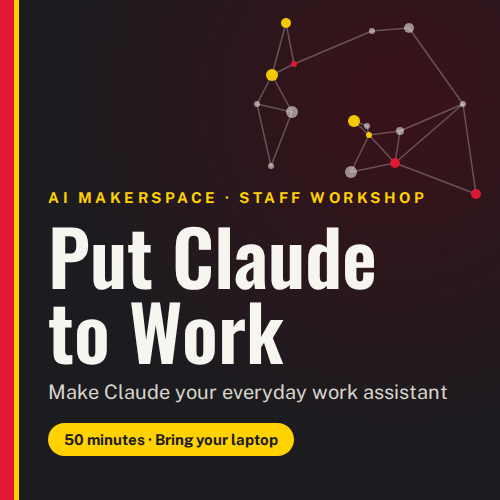
This is a 50-minute, hands-on session for staff who want AI to do real work for them, not just answer questions. On your own laptop, you’ll use the Claude desktop app to set up a workspace and have Claude gather and compare data from the web. You’ll then build a personal email assistant that drafts replies in your voice every morning. You stay in control the whole time: you choose which files and apps Claude can use, and nothing is sent without you. You’ll leave with a working project, a finished data comparison, and an assistant that has drafts waiting for you the next morning.
Objectives:
By the end of the workshop, you will be able to:
- Set up a Claude project connected to a dedicated folder, with saved instructions that tell Claude your role and how you work.
- Have Claude collect figures from two web sources, build a comparison table and chart, and explain where the sources disagree.
- Connect Gmail to Claude safely, with reading and drafting allowed and sending, forwarding and deleting blocked.
- Teach Claude your writing style from your sent mail and save it as a reusable skill.
- Schedule a daily 7 a.m. task that finds unanswered email and writes draft replies for you to review.
Target Audience:
Staff
Lab Responsible:
AI Makerspace
Topics Covered:
- What the Claude desktop app can do: work with files, browse the web, use connected apps and run scheduled tasks
- Projects, folders and saved instructions: explaining your context once
- Turning web research into data you can check, with source links for every number
- Data comparison activity: UMD vs. Big Ten peers, using school websites and federal College Scorecard data
- Connectors and permissions: choosing what Claude may do in Gmail and what it must never do
- Skills: capturing your writing voice so drafts sound like you
- Scheduled tasks: running a prompt automatically and checking its results
- Staying safe: approval modes, UMD data levels, reviewing every output, and how to pause or disconnect
Materials Needed:
- Before the session:
- A laptop (Mac or Windows) with the Claude desktop app installed and signed in with your UMD Claude license.
- Your UMD Directory ID, password and Duo, for connecting your @umd.edu Google account.
- Some sent email in your UMD Gmail account. Claude reads about 20 recent sent messages to learn your style.
- A charged battery or a power cord.
- Provided at the session:
- An activity guide with copy-and-paste prompts
- A backup data file in case a website won’t load
- A Claude quick reference sheet
- Facilitators to help with setup
Top